Networks and Infrastructure
Complete network infrastructure — from copper to fiber, from switch to cloud
Why It Matters
The Cost of Poor Cabling
Messy Cables
Tangled, unlabeled cables make every troubleshooting session a guessing game — wasting hours and patience.
Network Downtime
Unreliable connections cause random drops that halt productivity and frustrate your entire team.
Expensive Troubleshooting
Technicians spend billable hours tracing cables instead of fixing root causes — burning through your budget.
Cable Types Guide
Understanding Ethernet & Fiber Cables
Choosing the right cable is critical for performance and future-proofing. Here's what we recommend for each environment.

Ethernet Cables (Copper)
Cat5e
GoodEntry-level cable for small offices with minimal bandwidth needs. Supports Gigabit Ethernet but limited headroom for future upgrades.
Cat6
BetterThe sweet spot for most businesses. Supports 10 Gigabit at shorter distances with reduced crosstalk. Excellent price-to-performance ratio.
Cat6a
BestFull 10 Gigabit performance at 100 meters. Shielded variants eliminate alien crosstalk. Our recommended standard for new installations.
Cat7
PremiumFully shielded with individual pair shielding. Supports 10 Gigabit with room for growth. Higher cable and termination cost than Cat6a, and compatible networking equipment (switches, patch panels, NICs) is harder to source in Uganda — so the premium price rarely delivers proportional value locally.
Cat8
UltraThe fastest copper standard. Supports 25G and 40G Ethernet over short distances, but requires Cat8-specific infrastructure that is significantly more expensive and extremely difficult to source in East Africa. Recommended only for hyperscale data centers with direct OEM supply chains.
Fiber Optic Cables
Single-Mode Fiber (OS2)
Thin core that carries a single light ray. Used for long-distance connections between buildings, campuses, or across cities. Maximum bandwidth and distance.
Multi-Mode Fiber (OM3/OM4)
Wider core that carries multiple light modes. Ideal for connecting floors in a building or linking nearby structures. Cost-effective for short high-speed runs.
💡 Our Recommendation
For most Kampala offices, we recommend Cat6a for horizontal runs (workstation to patch panel) and single-mode fiberfor building backbone connections. This combination delivers 10 Gigabit speeds today with headroom for tomorrow's demands.
Complete Network Infrastructure
From Connector to Cloud — Every Component Explained
A structured cabling system is more than cables. It's a complete ecosystem of connectors, panels, switches, and design principles that work together.
🔌 Fiber Connectors
Fiber connectors terminate fiber optic cables and allow them to be plugged into equipment. The polish type (APC vs UPC) affects signal quality, while the connector shape (LC, SC, ST) determines compatibility.
Polish Types: APC vs UPC
UPC (Ultra Physical Contact)
Flat polish on the ferrule tip. Provides excellent return loss for digital data signals. The most common connector type for enterprise networks.
APC (Angled Physical Contact)
8-degree angle on the ferrule tip. Minimizes back reflections, making it essential for CATV, RF, and high-precision applications. Never mix APC and UPC — they will damage each other.
Connector Shapes: LC, SC, ST, MPO
LC (Lucent Connector)
Half the size of SC. The modern standard for high-density networking. Snap-in latch similar to RJ45. Perfect for data centers and enterprise switches.
SC (Subscriber Connector)
Square-shaped connector with push-pull mechanism. Rugged and reliable. Widely used in enterprise patch panels and FTTH installations.
ST (Straight Tip)
Round connector with twist-lock mechanism. Older technology being replaced by LC and SC. Still found in legacy installations and some industrial environments.
MPO/MTP (Multi-fiber Push On)
Terminates multiple fibers in a single connector. MTP is the high-performance version of MPO. Essential for 40G/100G/400G Ethernet and parallel optics. One connector replaces 12+ individual fibers.
🔗 Ethernet Connectors & Patch Panels

Patch Panel Installation
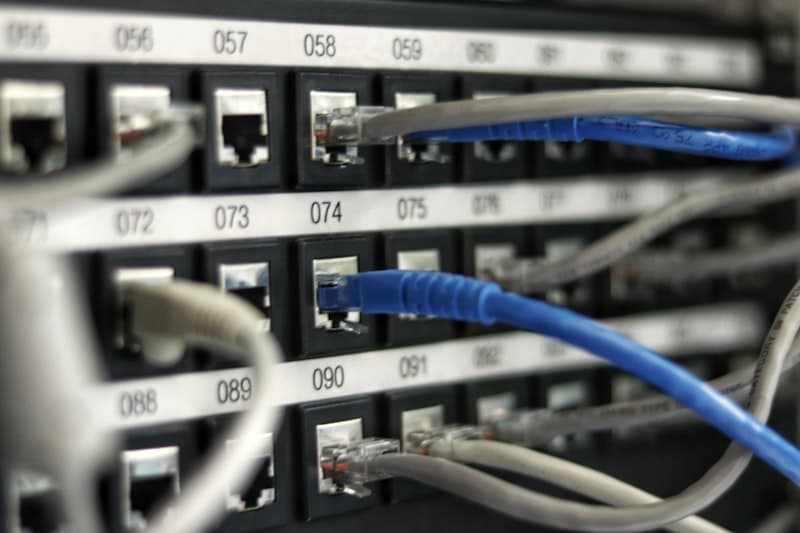
Clean, labeled patch panel installations with proper cable management — the foundation of organized network infrastructure.
RJ45 Connector
The standard connector for Ethernet networks. An 8-pin modular connector that terminates twisted-pair copper cables (Cat5e, Cat6, Cat6a, Cat7).
Key Features:
- • 8 pins, 8 conductors (4 pairs)
- • Supports Power over Ethernet (PoE)
- • Snap-in tab locking mechanism
- • Gold-plated contacts for corrosion resistance
Our Tip: Always use shielded RJ45 connectors (STP) in commercial environments to reduce EMI interference. We use Cat6a connectors rated for 10G performance.
Patch Panels
The central organizing point for all network cables. Patch panels mount in server racks and provide a clean, labeled interface for connecting equipment.
Copper Patch Panels
24/48 port RJ45 panels for Cat5e/Cat6/Cat6a cables. Each port maps to a workstation or device. Used with patch cords to connect to switches.
Fiber Patch Panels (ODF)
Optical Distribution Frames with LC/SC adapters. Organize fiber connections with built-in splice trays, cable management, and dust caps.

Server Rack Setup
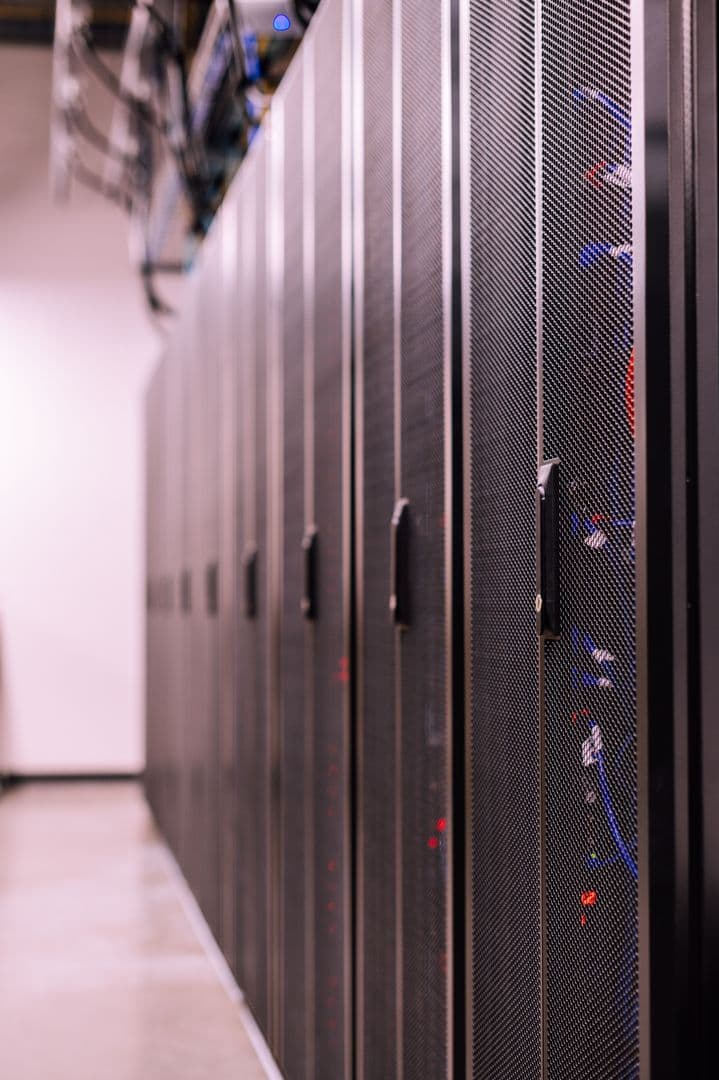
Complete server rack configurations with switches, patch panels, and proper airflow management for optimal network performance.
🔀 Network Switches & Routers
Modern networks use a hierarchical design with three tiers. Each tier handles different traffic patterns and serves specific functions.
Core Layer — Core Routers & Switches
The backbone of your network
What They Do:
- • Route traffic between VLANs and subnets
- • Connect to the internet (WAN)
- • High-speed backbone switching (10G-100G)
- • Redundant failover for uptime
Examples:
- • Cisco Catalyst 9000 series
- • MikroTik CCR series
- • Ubiquiti EdgeRouter
Distribution Layer — Aggregation Switches
Traffic aggregation and policy enforcement
What They Do:
- • Aggregate access layer switches
- • VLAN routing and ACL enforcement
- • QoS (Quality of Service) policies
- • Link aggregation (LACP) for bandwidth
Examples:
- • Cisco Catalyst 3850/9300
- • MikroTik CRS series
- • Ubiquiti UniFi Switch Pro
Access Layer — Access Switches
Where devices connect to the network
What They Do:
- • Connect workstations, phones, cameras
- • PoE delivery for IP devices
- • Port security and VLAN assignment
- • 802.1X authentication
Examples:
- • Cisco Catalyst 2960/9200
- • MikroTik CRS series
- • Ubiquiti UniFi Switch
- • D-Link DGS series
🛡️ Firewalls & Network Security
A firewall is the gatekeeper between your internal network and the outside world. Without one, every device on your network is exposed. We deploy firewalls that inspect traffic, block threats, and enforce security policies — so your data stays inside and attacks stay outside.
Next-Generation Firewall (NGFW)
Deep packet inspection, intrusion prevention, application control, and threat intelligence — all in one appliance. The gold standard for modern networks.
- Stateful packet inspection + DPI
- Intrusion Prevention System (IPS)
- Application-level filtering (block specific apps)
- SSL/TLS inspection — decrypts and inspects encrypted traffic
- Threat intelligence feeds updated in real-time
Unified Threat Management (UTM)
All-in-one security appliance combining firewall, antivirus, web filtering, VPN, and email security. Simple to manage — one box handles everything.
- Firewall + antivirus + web filtering
- Site-to-site and remote access VPN
- Email spam and malware filtering
- Content filtering and application control
- Centralized cloud management
Router + Firewall Combo
Network routers with built-in firewall capabilities. Cost-effective for smaller networks that need routing and basic security in one device.
- NAT, port forwarding, and SPI firewall
- VLAN routing with ACL enforcement
- VPN gateway for remote workers
- Bandwidth management and QoS
- Intrusion detection (basic)
🛡️ Where Does a Firewall Sit in Your Network?
The firewall sits between your internet connection and your internal network. All traffic passes through it — inbound and outbound.
For larger networks, we deploy firewalls at multiple points:
- • Perimeter: Between internet and core router
- • Between VLANs: Inter-VLAN traffic inspection
- • DMZ: Isolating public-facing servers
- • Remote access: VPN termination for remote workers
⚠️ Common Mistake
Many businesses rely solely on their router's built-in firewall. Consumer routers provide basic SPI (stateful packet inspection) but lack deep packet inspection, IPS, application control, and real-time threat intelligence. For any business handling sensitive data — financial records, customer information, or intellectual property — a dedicated NGFW is non-negotiable.
⚙️ Switch Types — Managed, Unmanaged & Layer 3
Not all switches are equal. The type you choose determines how much control you have over your network traffic, security policies, and performance optimization.
Unmanaged Switch
Plug-and-play — no configuration needed. Simply connect devices and they communicate. Zero control over traffic, VLANs, or QoS.
- No IP address — completely transparent
- No VLAN or QoS support
- No port mirroring or monitoring
- Fixed configuration — what you buy is what you get
- Lowest cost option
Managed Switch
Full control over your network. Configure VLANs, QoS priorities, port security, and monitoring. The standard choice for any business network.
- Web GUI and/or CLI management
- VLAN support — segment traffic by department
- QoS — prioritize voice/video over file transfers
- Port mirroring for traffic analysis
- 802.1X port authentication
- SNMP monitoring and alerting
Layer 3 Switch
A managed switch with routing capabilities. Can route between VLANs without needing a separate router. The distribution layer workhorse.
- All managed switch features
- Static and dynamic routing (OSPF, RIP)
- Inter-VLAN routing at wire speed
- Redundant power supply support
- High-speed 10G/25G/40G uplinks
- ECMP for load balancing across paths
⚡ PoE Standards — Power over Ethernet Explained
PoE delivers both data and power through a single Ethernet cable — eliminating the need for separate power adapters. The standard you choose determines how much power each device can draw.
| Standard | Name | Power per Port | Voltage | Cable Required | Typical Devices |
|---|---|---|---|---|---|
| 802.3af | PoE | 15.4W | 44-57V DC | Cat5 or higher | IP phones, basic APs, sensors |
| 802.3at | PoE+ | 30W | 50-57V DC | Cat5e or higher | WiFi 6 APs, PTZ cameras, video phones |
| 802.3bt Type 3 | PoE++ | 60W | 50-57V DC | Cat5e or higher | High-power APs, video conferencing, LED lighting |
| 802.3bt Type 4 | PoE++ | 100W | 52-57V DC | Cat6a or higher | Laptops, workstations, digital signage, thin clients |
💡 Our Recommendation
For most deployments, choose 802.3at (PoE+) switches. They deliver 30W per port — enough for WiFi 6 APs, IP cameras, and VoIP phones. Only go to 802.3bt if you need to power laptops or high-wattage devices over Ethernet.
⚠️ Don't Use Passive PoE
Some vendors sell "PoE" switches that use passive (non-standard) PoE. These send power without negotiating with the device — risking damage to non-PoE equipment. Always insist on 802.3af/at/bt-compliant switches.
📋 Cable Jacket Ratings — Plenum, Riser & Outdoor
The cable jacket isn't just cosmetic — it determines where you can legally and safely install a cable. Using the wrong rating is a fire code violation and voids insurance.
Plenum (CMP)
Burns slowly and produces minimal smoke. Required by fire code for air-handling spaces — drop ceilings, HVAC ducts, and return air plenums.
- OFNP (Optical Fiber Non-conductive Plenum) rated
- Low smoke and zero halogen (LSZH) options
- Required above suspended ceilings in commercial buildings
- More expensive — but legally required in plenum spaces
Best for: Drop ceilings, HVAC spaces, any air-handling area
Riser (CMR)
Designed for vertical runs between floors. Burns but doesn't spread flame vertically. Used in vertical cable shafts and between floors.
- OFNR (Optical Fiber Non-conductive Riser) rated
- Self-extinguishing — won't carry flame between floors
- Cannot be used in plenum spaces (air-handling areas)
- Mid-range cost — suitable for most vertical runs
Best for: Between floors, vertical shafts, non-air-handling spaces
Outdoor / Direct Burial
UV-resistant, waterproof, and often armoured. Withstands direct sunlight, rain, soil moisture, and rodent damage. Gel-filled or dry-core designs.
- UV-resistant jacket — won't degrade in sunlight
- Waterproof — gel-filled or dry-core designs
- Armoured options for rodent and crush protection
- Direct burial rated — no conduit required (some types)
Best for: Outdoor runs, underground conduit, building-to-building links
🗄️ Server Rack Best Practices
A messy rack is a dead rack. Proper rack organization isn't cosmetic — it's about airflow, cooling efficiency, and making sure you can find and fix problems fast.
Front-to-Back Airflow
Hot aisle/cold aisle design: equipment intakes face the front (cold aisle), exhausts face the back (hot aisle). Never mix — this cuts cooling costs by 30-40%.
Cable Management
Use vertical and horizontal cable managers. Route patch cords through side panels. Never let cables block airflow vents or hang in front of equipment.
Weight Distribution
Heavy equipment (UPS, servers) goes at the bottom. Lighter equipment (switches, patch panels) at eye level. A top-heavy rack is a tipping hazard.
Label Everything
Every cable, every port, every device. Use a label maker — not masking tape. When something breaks at 2am, you need to identify it in seconds, not minutes.
Power Distribution
Use rack-mounted PDUs with individual outlet switching. Separate A+B power feeds for redundant equipment. Never daisy-chain power strips.
Environmental Monitoring
Install temperature and humidity sensors. Most equipment failures are caused by heat. A $50 sensor can prevent a $50,000 outage.
📞 VoIP & PBX Phone Systems
Your phone system is how customers reach you and how your team communicates. VoIP replaces expensive traditional phone lines with internet-based calling — cutting costs by 40-70% while adding features that legacy PBX systems can't match.
On-Premise PBX
A physical server at your location manages all calls. Full control over hardware, data, and call routing. Higher upfront cost but lower long-term — no monthly per-user fees.
- One-time hardware investment — no monthly PBX fees
- Full control over call data — never leaves your premises
- Works without internet (local calls only)
- Customizable IVR, call routing, and ring groups
- Scales by adding modules or expansion cards
- No vendor lock-in — own your system outright
Cloud PBX (Hosted VoIP)
Your phone system runs in the cloud — no server to maintain. Pay per user per month. Features auto-update, and you can manage everything from a web dashboard or mobile app.
- No hardware to buy, maintain, or replace
- Per-user pricing — predictable monthly costs
- Auto-updates — always on the latest version
- Work from anywhere — softphone on laptop or phone
- Built-in disaster recovery — calls route to mobile if office goes down
- Advanced features included (call recording, analytics, CRM integration)
🔗 SIP Trunking — How VoIP Connects to the Phone Network
SIP trunks replace traditional phone lines (ISDN/PRI) with virtual connections over your internet connection. One SIP trunk can handle 10-500 concurrent calls — no physical lines needed.
How It Works
- VoIP provider allocates virtual channels
- Calls travel over your internet connection
- Provider connects to the public phone network (PSTN)
- Incoming calls route to your PBX automatically
SIP Trunk vs Traditional Lines
What You Need
- ●Reliable internet (100Kbps per concurrent call)
- ●QoS-enabled router (prioritize voice traffic)
- ●SIP-compatible PBX or IP phones
- ●VLAN for voice traffic (isolate from data)
Desk Phone Selection Guide
Basic IP Phone
Models: Grandstream GXP1610, Yealink T31G, D-Link DPH-150
Executive IP Phone
Models: Yealink T54W, Grandstream GRP2614, Cisco 8845
Conference Phone
Models: Yealink CP935W, Grandstream GAC2500, Poly Trio C60
Cordless DECT Phone
Models: Yealink W73P, Grandstream DP752 + DP720, Cisco 730
📞 VoIP Network Requirements — What Your Network Must Have
Must-Haves:
- VLAN for voice — isolate phone traffic from data
- QoS marking — prioritize voice packets over file transfers
- PoE switches — power phones without separate adapters
- Jitter buffer — smooth out packet timing variations
- Bandwidth — 100Kbps per concurrent call (G.711)
Nice-to-Haves:
- SD-WAN — automatic failover to backup internet
- Backup SIP trunk — secondary provider for redundancy
- Call recording server — compliance and training
- CRM integration — screen pops, click-to-call
- Headsets — for call centers and power users
🏢 Call Center Setup — What You Need
PBX with ACD (Automatic Call Distribution)
Routes incoming calls to available agents based on skill, priority, or round-robin. Prevents call dumping.
IVR (Interactive Voice Response)
"Press 1 for Sales, Press 2 for Support" — self-service menu that routes callers without a receptionist.
Queue Management
Hold music, estimated wait time, position announcements, callback options — keep callers informed while they wait.
Agent Dashboard & Wallboard
Real-time display of calls waiting, average wait time, agent status. Supervisors monitor live and barge into calls.
Call Recording & Analytics
Record every call for quality assurance, compliance, and dispute resolution. Reports on call volume, duration, and resolution.
Headsets & Ergonomics
Noise-cancelling headsets (Jabra, Poly, EPOS) for agent comfort during 8-hour shifts. USB or RJ9 connection to desk phone.
🗺️ IP Address Planning — Subnetting, DNS & DHCP
Every device on your network needs an IP address. How you plan, assign, and manage those addresses determines whether your network is efficient and secure — or a tangled mess that breaks when you add new devices.
IP Addressing Basics
An IP address is a device's unique identifier on a network. Think of it as a postal address — without it, data can't find its way.
A /24 subnet gives you 254 usable addresses (192.168.1.1 - 192.168.1.254). That's enough for most small offices.
Why Subnetting Matters
- Security — isolate cameras, phones, and guest WiFi from business data
- Performance — broadcast traffic stays within subnets, reducing congestion
- Troubleshooting — easy to identify which segment a problem device is on
- Scalability — add new departments without re-addressing the entire network
Typical Office Subnet Design
| VLAN | Subnet | Purpose | Usable IPs | Notes |
|---|---|---|---|---|
| VLAN 10 | 10.0.10.0/24 | Staff Workstations | 254 | Primary business network |
| VLAN 20 | 10.0.20.0/24 | IP Phones | 254 | QoS priority, voice VLAN |
| VLAN 30 | 10.0.30.0/24 | IP Cameras | 254 | Isolated, no internet access |
| VLAN 40 | 10.0.40.0/24 | Guest WiFi | 254 | Internet only, no LAN access |
| VLAN 50 | 10.0.50.0/24 | Servers & Printers | 254 | Static IPs only |
| VLAN 60 | 10.0.60.0/24 | IoT / Access Control | 254 | Biometric, intercom, HVAC |
Pro Tip:Use 10.0.x.0/24 or 172.16.x.0/24 for internal networks. Never use 192.168.x.0 for businesses — it's the default for home routers and causes conflicts when staff connect VPN from home.
📋 DHCP — Automatic IP Assignment
DHCP (Dynamic Host Configuration Protocol) automatically assigns IP addresses, subnet masks, gateways, and DNS servers to devices when they connect. Without it, every device needs manual configuration.
What DHCP Provides:
- • IP address (from a defined pool)
- • Subnet mask
- • Default gateway
- • DNS server addresses
- • Lease time (how long the IP is valid)
Static vs Dynamic: Servers, printers, cameras, and network equipment should use static IPs (fixed addresses). Workstations and phones use DHCP (automatic).
🌐DNS — The Internet's Phone Book
DNS (Domain Name System) translates human-readable names (google.com) into IP addresses (142.250.80.46). Without DNS, users would have to memorize IP addresses for every website and service.
DNS Best Practices for Business:
- • Run a local DNS server (or use router's built-in DNS)
- • Forward external queries to 8.8.8.8 or 1.1.1.1
- • Create internal DNS entries for servers and printers
- • Use DNS filtering to block malicious domains
- • Document all DNS records in a central location
Security Tip: Use DNS filtering (Quad9, Cloudflare Gateway, or Pi-hole) to block known malicious domains. This prevents malware from reaching your network even if a user clicks a phishing link.
🗺️ IP Planning Checklist
- Document every subnet, VLAN, and purpose
- Reserve IP ranges for each device type
- Use /24 subnets (254 hosts) — easier to manage than /16
- Leave 20% headroom in each subnet for growth
- Never use 192.168.x.x for business networks (VPN conflicts)
- Use IPAM software to track assignments (or a spreadsheet)
- Set DHCP reservations for printers and shared devices
- Review and audit IP usage quarterly
📶 Wireless Access Point Selection Guide
Choosing the right access point depends on your environment, user density, and budget. Here's a breakdown of every AP type — from ceiling-mounted indoor units to weatherproof outdoor bridges and the newer wall plate models that are replacing traditional jacks.
Ceiling-Mount Indoor AP
Best for: Offices, lobbies, conference rooms, open plans
The workhorse of indoor WiFi. Mounted on ceilings, these APs radiate signal downward and outward for maximum coverage. Most businesses start here.
Models: UniFi U6 Pro, UniFi U6 Enterprise, Cisco Meraki MR46, TP-Link EAP670
Wall Plate AP
Best for: Hotel rooms, dormitories, offices, apartments
Mounts directly over a standard network jack, replacing it entirely. Provides WiFi plus wired pass-through ports for devices like TVs and phones. Perfect for hospitality and multi-dwelling units.
Models: UniFi U6 In-Wall, TP-Link EAP235-Wall, Cisco Meraki MR30H, Aruba AP-203H
Outdoor AP
Best for: Parking lots, compounds, outdoor seating, campuses
Weatherproof enclosures (IP67-rated) designed to survive rain, dust, and heat. Long-range antennas cover large outdoor areas. Some support mesh for cable-free deployment.
Models: UniFi U6 Mesh, UniFi U7 Pro Max Outdoor, TP-Link EAP225-Outdoor, MikroTik cAP ax
High-Density AP
Best for: Auditoriums, conference halls, stadiums, large events
Built for environments with hundreds of devices in a small area. More radios, more antennas, higher processing power. Handles the load without dropping clients.
Models: UniFi U6 Enterprise, Cisco Meraki MR56, Aruba AP-635, Ruckus R750
🔌 Wall Plate APs — The New Standard for Hotels & Offices
Wall plate APs are the fastest-growing segment in WiFi infrastructure. They mount directly over a standard US or EU junction box, replacing the traditional wall jack entirely. The AP provides wireless coverage plus 1-4 Ethernet pass-through ports for wired devices like smart TVs, VoIP phones, and desktop computers.
Why Hotels Love Them
- One AP per room = perfect coverage
- Guest plugs TV, laptop into pass-through ports
- No ceiling wiring needed — uses existing wall jacks
- Sleek design blends into room decor
Why Offices Love Them
- Replaces ugly desktop switches
- Each desk gets its own dedicated AP
- PoE powered — no separate power adapter
- Easy to add/remove as offices reconfigure
Key Specs to Compare
- ●WiFi 6 or 6E (not just WiFi 5)
- ●PoE+ (802.3at) for power — not passive PoE
- ●Gigabit pass-through ports (not Fast Ethernet)
- ●Controller-managed for easy fleet updates
Quick Selection Guide
| Environment | Recommended AP Type | Coverage | User Density |
|---|---|---|---|
| Small office (1-15 people) | Ceiling-mount or Wall plate | 1 room / 93m² | Low (20-50) |
| Open-plan office | Ceiling-mount (high-density) | 185m² per AP | Medium (50-150) |
| Hotel room | Wall plate AP | 1 room / 40m² | Low (5-20) |
| Hotel lobby / restaurant | Ceiling-mount (high-density) | 140m² per AP | High (100-300) |
| Warehouse / factory | Outdoor-rated or industrial | 465m² per AP | Low-Medium (30-100) |
| Outdoor compound / parking | Outdoor AP (IP67) | 465m² per AP | Low-Medium (50-150) |
| Conference hall / auditorium | High-density AP | 140m² per AP | Very High (300-600) |
| Dormitory / staff quarters | Wall plate AP | 1 room / 25m² | Low (5-15) |
WiFi 5 (802.11ac)
Still found in older installations. Max 3.5 Gbps theoretical. Fine for small offices with basic needs.
WiFi 6 (802.11ax)
RecommendedThe current sweet spot. Better performance in crowded environments, lower latency, improved battery life for devices.
WiFi 6E / WiFi 7
Latest generation. WiFi 6E adds 6 GHz band. WiFi 7 adds multi-link operation. Premium performance for high-density environments.
Deployment Tips from Our Engineers
Always do a site survey first
Heat maps reveal dead zones before you buy equipment. We use Ekahau and UniFi design tools.
Plan for 30% more APs than you think
Walls, furniture, and people absorb signal. A room that looks like it needs 1 AP usually needs 2.
Use a controller from day one
Even 5 APs benefit from centralized management. Auto-channel, firmware updates, and roaming optimization.
Don't mix AP brands
Stick to one vendor (UniFi, Cisco, TP-Link) for seamless roaming and single-pane management.
Budget for cabling, not just APs
Each AP needs a Cat6 drop back to the switch. Factor in cable, patch panel, and switch port costs.
Guest WiFi must be isolated
Never share a network with guests and staff. VLAN segregation is non-negotiable for security.
🗺️ Complete Network Design
How all components connect — from workstation to internet. This is the architecture we design for every client.
Core Router
Cisco / MikroTik
VLAN routing, Firewall
Distribution Switch
Aggregation, QoS, LACP
10G Uplinks
Access Switch
24-48 ports
PoE+
Access Switch
24-48 ports
PoE+
Access Switch
24-48 ports
PoE+
🏗️ How Backspace Designs Your Network
Every network we build follows this three-tier architecture. We start with a site survey to understand your layout, then design a structured cabling backbone that connects workstations to patch panels, patch panels to access switches, and access switches to the distribution and core layers. Fiber optic links connect floors and buildings, while wireless access pointsprovide mobility. The result: a network that's organized, scalable, and built to perform.
Fiber Optic Infrastructure
Beyond Copper — High-Speed Fiber Deployment
When copper can't keep up, fiber optic cabling delivers the speed, distance, and reliability your business demands.

Copper Limitations
Traditional copper cables degrade over distance, limiting your network to 100 meters before signal loss becomes critical.
Slow Speeds
Copper maxes out at 1Gbps. When your business needs more, copper becomes the bottleneck that holds everything back.
Distance Restrictions
Multi-building campuses and large facilities can't be reliably connected with copper — the signal just doesn't reach.
How It Works
Our 5-Step Fiber Deployment
Assessment
We evaluate your current network, bandwidth requirements, and physical layout to determine the right fiber solution.
Route Planning
Engineers design optimal fiber paths — underground ducts, aerial runs, or indoor risers — balancing cost and performance.
Cable Pulling
Specialized technicians pull fiber through designed routes with careful bend radius management and tension control.
Splicing
High-precision fusion splicing joins fiber segments with near-zero dB signal loss at every connection point.
Testing
OTDR testing validates end-to-end signal quality, splice loss, and overall link performance — documented with full reports.
ROI Analysis
The Value of Fiber
Faster Speeds
Fiber delivers up to 100Gbps — future-proofing your network for decades.
Network Uptime
Fiber is immune to electromagnetic interference — no more weather-related drops.
Future-Proof
Fiber infrastructure supports bandwidth upgrades without replacing cables.
Before & After
The Fiber Transformation
Before
- Copper cables maxing out at 1Gbps
- Signal degradation across buildings
- Frequent network drops during rain
- No path for future bandwidth upgrades
After
- Multi-gigabit speeds across entire campus
- Clean, interference-free signal at any distance
- Weather-proof connectivity that never drops
- Infrastructure ready for 100G and beyond
Case Study
Case Study 2
Kampala

Challenge
A 120-room hotel needed high-speed WiFi in every room, but their copper backbone couldn't handle the concurrent load. Guests complained about slow internet, and the hotel was losing bookings to competitors with better connectivity.
Solution
Backspace deployed a single-mode fiber backbone connecting all 4 floors, with multi-mode fiber for high-density areas like conference rooms and the lobby. Fusion spliced at every junction with OTDR-verified performance.
Results
- Guest WiFi satisfaction scores increased from 2.1 to 4.8 stars
- Concurrent connections increased from 80 to 500+ without degradation
- Hotel regained premium WiFi marketing as a competitive advantage
- Zero fiber-related downtime in 18 months of operation
FAQ
Fiber Optic Questions
Single-mode vs multi-mode — which do I need?
Single-mode is ideal for long-distance runs (buildings, campus-wide) and higher bandwidth. Multi-mode is cost-effective for shorter runs within buildings. We'll recommend the right mix during the assessment.
How fast is fiber optic internet?
Fiber supports speeds from 1Gbps to 100Gbps depending on equipment. The cable itself has virtually unlimited bandwidth — speed is determined by the transceivers and switches at each end.
How long does fiber installation take?
A typical hotel or office deployment takes 3-7 days depending on the number of floors, route complexity, and whether underground ducting is required. We work around your operational hours.
How It Works
Our Proven 5-Step Process
Site Survey
We map your space, identify cable routes, assess existing infrastructure, and document every endpoint requirement.
Design
Our engineers create a detailed network topology with cable schedules, patch panel layouts, and labeling schemes.
Installation
Certified technicians install cable trays, run Cat6/Cat6a cables, terminate patch panels, and implement cable management.
Testing
Every cable run is tested with Fluke equipment for signal integrity, crosstalk, and return loss — documented with full reports.
Certification
Your installation receives manufacturer warranty coverage and Backspace certification — backed by ongoing support.
What's Included
Everything Your Network Needs
A complete structured cabling deployment — from initial design to final certification.
ROI Analysis
The Business Case for Quality Cabling
Faster Troubleshooting
Labeled, organized cables mean technicians find and fix issues in minutes, not hours.
Network Uptime
Enterprise-grade cabling eliminates random drops and signal degradation.
Reduction in Downtime Costs
Reliable infrastructure means fewer outages and less lost revenue.
Before & After
The Transformation

Before
- Cables draped across floors and ceilings
- No labeling — impossible to trace connections
- Random switches and hubs wherever they fit
- No documentation — knowledge lives in one person's head
After
- Clean, routed cables through dedicated trays
- Every cable labeled at both ends with unique IDs
- Centralized patch panels in organized racks
- Full as-built diagrams and documentation
Case Study
Case Study 1
Nakasero, Kampala
Challenge
A growing organization with 150 staff members across 3 floors was experiencing daily network drops. Their existing cabling was a decade old, unlabeled, and mixed Cat5 with Cat5e — causing cascading failures during peak hours.
Solution
Backspace conducted a full site survey, designed a new structured cabling backbone using Cat6a throughout, installed dedicated cable trays, and deployed 12 patch panels with complete labeling. All 450 cable runs were Fluke-tested and certified.
Results
- Zero network drops reported in the first 90 days
- Troubleshooting time reduced from 4 hours to 20 minutes
- Network capacity increased to support 200+ endpoints
- Full documentation handed over for future maintenance
FAQ
Common Questions
What cable type do you recommend for a modern office?
For most offices, we recommend Cat6a — it supports 10 Gigabit Ethernet up to 100 meters and provides headroom for future upgrades. For budget-sensitive projects, Cat6 offers excellent performance at a lower cost.
How long does a structured cabling installation take?
A typical 20-50 drop installation takes 2-3 days. Larger projects (100+ drops across multiple floors) typically take 1-2 weeks. We work around your business hours to minimize disruption.
What certification do you provide?
Every installation is Fluke-tested and certified to TIA/EIA-568 standards. You receive a full test report documenting signal quality, crosstalk, and return loss for every cable run — along with manufacturer warranty coverage.
Can you work with my existing cable infrastructure?
Yes. We often integrate new runs into existing setups, upgrading critical paths while preserving working infrastructure. We'll assess what can stay and what needs replacing during the site survey.
Ready to Build Your Network Right?
Get a free site survey and custom cabling design from a Backspace engineer.